

Introduction to Hyper-V and PowerShell
Managing a virtualized environment efficiently involves identifying servers that host Hyper-V roles. Hyper-V is a powerful hypervisor built into Windows Server, allowing you to create and manage virtual machines.
Using PowerShell, you can discover all servers in an environment running the Hyper-V role. For example, you may have outsourced your IT department or changed MSP's, servers may have been left behind you did not know about.
Using PowerShell to Find Hyper-V Servers
To find servers running the Hyper-V role, you can use the following PowerShell script below.
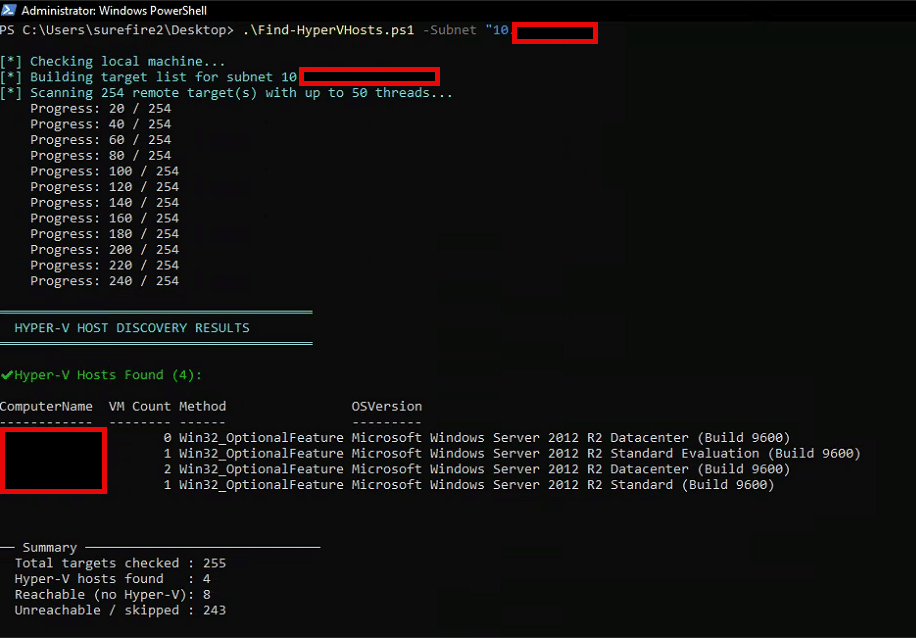
The script uses "CimInstance" to look for computers running the Hyper-V role, pings them and then returns the following:
- Computer Name
- VM Count
- Method used
- OS Version
Here is an example of a script that was run in a test environment:
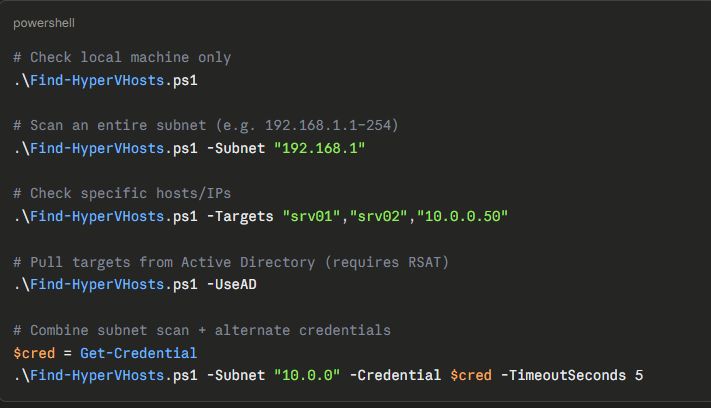
You have the ability to target the following:
- Local machine only
- Entire Subnet
- Specific Hosts or IP Addresses
- Active Directory
Here are the parameters for each one:
Below is the PowerShell code, save the PowerShell script as "Find-Hyper-VHosts.PS1".
#Requires -Version 5.1
<#
.SYNOPSIS
    Discovers Hyper-V hosts on the network or on the local machine.

.DESCRIPTION
    This script finds Hyper-V hosts using multiple methods:
      1. Checks the local machine for the Hyper-V role/feature
      2. Scans a subnet (or a list of IPs/hostnames) via WMI/CIM for the Hyper-V role
      3. Optionally queries Active Directory for computers running Hyper-V

.PARAMETER Subnet
    Base subnet to scan, e.g. "192.168.1". The script will probe .1–.254.
    If omitted, only the local machine and any -Targets are checked.

.PARAMETER Targets
    Array of specific hostnames or IP addresses to check.

.PARAMETER UseAD
    Switch. Query Active Directory for computer objects and check each one.
    Requires the ActiveDirectory module (RSAT).

.PARAMETER Credential
    PSCredential to use for remote WMI/CIM connections. If omitted, the
    current user context is used.

.PARAMETER TimeoutSeconds
    Per-host CIM connection timeout in seconds. Default: 3.

.PARAMETER MaxThreads
    Number of parallel runspace threads. Default: 50.

.EXAMPLE
    # Check local machine only
    .\Find-HyperVHosts.ps1

.EXAMPLE
    # Scan a subnet
    .\Find-HyperVHosts.ps1 -Subnet "10.0.0"

.EXAMPLE
    # Check specific hosts with alternate credentials
    $cred = Get-Credential
    .\Find-HyperVHosts.ps1 -Targets "srv01","srv02","10.0.0.50" -Credential $cred

.EXAMPLE
    # Use Active Directory to build the target list
    .\Find-HyperVHosts.ps1 -UseAD
#>

[CmdletBinding()]
param(
    [string]   $Subnet,
    [string[]] $Targets,
    [switch]   $UseAD,
    [PSCredential] $Credential,
    [int]      $TimeoutSeconds = 3,
    [int]      $MaxThreads     = 50
)

Set-StrictMode -Version Latest
$ErrorActionPreference = 'SilentlyContinue'

# ─────────────────────────────────────────────
# Helper: test whether a host has Hyper-V via CIM
# ─────────────────────────────────────────────
function Test-HyperVHost {
    param(
        [string]      $ComputerName,
        [PSCredential]$Cred,
        [int]         $Timeout
    )

    $result = [PSCustomObject]@{
        ComputerName = $ComputerName
        IsHyperVHost = $false
        Method       = ''
        VMCount      = $null
        OSVersion    = ''
        Reachable    = $false
        Error        = ''
    }

    # --- Quick ICMP check first (fast fail) ---
    $pingOk = Test-Connection -ComputerName $ComputerName -Count 1 -Quiet -ErrorAction SilentlyContinue
    if (-not $pingOk) {
        $result.Error = 'No ping response'
        return $result
    }
    $result.Reachable = $true

    # --- Build CIM session options ---
    $cimOpts = New-CimSessionOption -Protocol Dcom   # fallback for older hosts
    $cimParams = @{
        ComputerName  = $ComputerName
        OperationTimeoutSec = $Timeout
        ErrorAction   = 'Stop'
    }
    if ($Cred) { $cimParams['Credential'] = $Cred }

    try {
        # Try WSMAN first (WinRM), then DCOM
        foreach ($proto in @('Wsman','Dcom')) {
            try {
                $opt = New-CimSessionOption -Protocol $proto
                $session = New-CimSession @cimParams -SessionOption $opt
                break
            } catch {
                $session = $null
            }
        }

        if (-not $session) { throw "Could not create CIM session" }

        # ── Method 1: Windows Feature / Role (Server OS) ──
        $hvFeature = Get-CimInstance -CimSession $session `
            -ClassName Win32_OptionalFeature `
            -Filter "Name='Microsoft-Hyper-V' AND InstallState=1" `
            -ErrorAction SilentlyContinue

        if ($hvFeature) {
            $result.IsHyperVHost = $true
            $result.Method       = 'Win32_OptionalFeature'
        }

        # ── Method 2: ServerManager role (DISM / older 2008+) ──
        if (-not $result.IsHyperVHost) {
            $hvRole = Get-CimInstance -CimSession $session `
                -Namespace 'root\Microsoft\Windows\ServerManager' `
                -ClassName 'MSFT_ServerManagerTasks' `
                -ErrorAction SilentlyContinue

            # Alternate: check via registry key for Hyper-V
            $hvReg = Invoke-CimMethod -CimSession $session `
                -ClassName StdRegProv `
                -MethodName CheckAccess `
                -Arguments @{
                    hDefKey   = [uint32]'0x80000002'   # HKLM
                    sSubKeyName = 'SOFTWARE\Microsoft\Windows NT\CurrentVersion\Virtualization'
                } -ErrorAction SilentlyContinue

            if ($hvReg -and $hvReg.bGranted) {
                $result.IsHyperVHost = $true
                $result.Method       = 'Registry (Virtualization key)'
            }
        }

        # ── Method 3: Hyper-V WMI namespace ──
        if (-not $result.IsHyperVHost) {
            $hvNs = Get-CimInstance -CimSession $session `
                -Namespace 'root\virtualization\v2' `
                -ClassName 'Msvm_ComputerSystem' `
                -Filter "Caption='Hosting Computer System'" `
                -ErrorAction SilentlyContinue

            if ($hvNs) {
                $result.IsHyperVHost = $true
                $result.Method       = 'Msvm_ComputerSystem (root\virtualization\v2)'
            }
        }

        # ── If confirmed Hyper-V, count running VMs ──
        if ($result.IsHyperVHost) {
            $vms = Get-CimInstance -CimSession $session `
                -Namespace 'root\virtualization\v2' `
                -ClassName 'Msvm_ComputerSystem' `
                -Filter "Caption='Virtual Machine'" `
                -ErrorAction SilentlyContinue
            $result.VMCount = if ($vms) { @($vms).Count } else { 0 }
        }

        # ── Grab OS version for context ──
        $os = Get-CimInstance -CimSession $session -ClassName Win32_OperatingSystem -ErrorAction SilentlyContinue
        if ($os) { $result.OSVersion = "$($os.Caption) (Build $($os.BuildNumber))" }

        Remove-CimSession $session -ErrorAction SilentlyContinue

    } catch {
        $result.Error = $_.Exception.Message
    }

    return $result
}

# ─────────────────────────────────────────────
# 1. Always check localhost first (no remoting needed)
# ─────────────────────────────────────────────
Write-Host "`n[*] Checking local machine..." -ForegroundColor Cyan
$localResults = @()

$localHV = $false
$localMethod = ''

# Check via Get-WindowsFeature (Server OS, requires ServerManager module)
if (Get-Command Get-WindowsFeature -ErrorAction SilentlyContinue) {
    $feat = Get-WindowsFeature -Name Hyper-V -ErrorAction SilentlyContinue
    if ($feat -and $feat.InstallState -eq 'Installed') {
        $localHV     = $true
        $localMethod = 'Get-WindowsFeature'
    }
}

# Check via DISM / OptionalFeature (works on Windows 10/11 too)
if (-not $localHV) {
    $feat2 = Get-WindowsOptionalFeature -Online -FeatureName Microsoft-Hyper-V -ErrorAction SilentlyContinue
    if ($feat2 -and $feat2.State -eq 'Enabled') {
        $localHV     = $true
        $localMethod = 'Get-WindowsOptionalFeature'
    }
}

# Check via WMI namespace (most reliable)
if (-not $localHV) {
    $hvNs = Get-CimInstance -Namespace 'root\virtualization\v2' `
        -ClassName 'Msvm_ComputerSystem' `
        -Filter "Caption='Hosting Computer System'" `
        -ErrorAction SilentlyContinue
    if ($hvNs) {
        $localHV     = $true
        $localMethod = 'Msvm_ComputerSystem (local)'
    }
}

$localVMCount = $null
$localOSObj = Get-CimInstance Win32_OperatingSystem -ErrorAction SilentlyContinue
$localOS = if ($localOSObj) { $localOSObj.Caption } else { '' }

if ($localHV) {
    $vms = Get-CimInstance -Namespace 'root\virtualization\v2' `
        -ClassName 'Msvm_ComputerSystem' `
        -Filter "Caption='Virtual Machine'" `
        -ErrorAction SilentlyContinue
    $localVMCount = if ($vms) { @($vms).Count } else { 0 }
}

$localResults += [PSCustomObject]@{
    ComputerName = $env:COMPUTERNAME
    IsHyperVHost = $localHV
    Method       = $localMethod
    VMCount      = $localVMCount
    OSVersion    = $localOS
    Reachable    = $true
    Error        = ''
}

# ─────────────────────────────────────────────
# 2. Build remote target list
# ─────────────────────────────────────────────
$remoteTargets = [System.Collections.Generic.List[string]]::new()

# From -Targets parameter
if ($Targets) { $Targets | ForEach-Object { $remoteTargets.Add($_) } }

# Subnet sweep
if ($Subnet) {
    Write-Host "[*] Building target list for subnet ${Subnet}.1-254..." -ForegroundColor Cyan
    1..254 | ForEach-Object { $remoteTargets.Add("${Subnet}.$_") }
}

# Active Directory
if ($UseAD) {
    Write-Host "[*] Querying Active Directory for computer objects..." -ForegroundColor Cyan
    if (-not (Get-Module -Name ActiveDirectory -ListAvailable)) {
        Write-Warning "ActiveDirectory module not found. Install RSAT or skip -UseAD."
    } else {
        Import-Module ActiveDirectory -ErrorAction SilentlyContinue
        $adComputers = Get-ADComputer -Filter { OperatingSystem -like "*Windows Server*" } `
            -Properties DNSHostName -ErrorAction SilentlyContinue
        if ($adComputers) {
            $adComputers | ForEach-Object {
                if ($_.DNSHostName -and $_.DNSHostName -ne $env:COMPUTERNAME) {
                    $remoteTargets.Add($_.DNSHostName)
                }
            }
            Write-Host "    Found $($adComputers.Count) AD computer(s)." -ForegroundColor Gray
        }
    }
}

# De-duplicate and remove local machine
$remoteTargets = $remoteTargets |
    Where-Object { $_ -ne $env:COMPUTERNAME -and $_ -ne '127.0.0.1' -and $_ -ne 'localhost' } |
    Select-Object -Unique

# ─────────────────────────────────────────────
# 3. Parallel remote scan using Runspaces
# ─────────────────────────────────────────────
$remoteResults = [System.Collections.Concurrent.ConcurrentBag[object]]::new()

if ($remoteTargets.Count -gt 0) {
    Write-Host "[*] Scanning $($remoteTargets.Count) remote target(s) with up to $MaxThreads threads..." -ForegroundColor Cyan

    $pool = [RunspaceFactory]::CreateRunspacePool(1, $MaxThreads)
    $pool.Open()

    $scriptBlock = {
        param($ComputerName, $Cred, $Timeout)

        function Test-HyperVHost {
            param($ComputerName, $Cred, $Timeout)
            $result = [PSCustomObject]@{
                ComputerName = $ComputerName
                IsHyperVHost = $false
                Method       = ''
                VMCount      = $null
                OSVersion    = ''
                Reachable    = $false
                Error        = ''
            }
            $pingOk = Test-Connection -ComputerName $ComputerName -Count 1 -Quiet -ErrorAction SilentlyContinue
            if (-not $pingOk) { $result.Error = 'No ping response'; return $result }
            $result.Reachable = $true

            $cimParams = @{ ComputerName = $ComputerName; OperationTimeoutSec = $Timeout; ErrorAction = 'Stop' }
            if ($Cred) { $cimParams['Credential'] = $Cred }

            try {
                $session = $null
                foreach ($proto in @('Wsman','Dcom')) {
                    try {
                        $opt = New-CimSessionOption -Protocol $proto
                        $session = New-CimSession @cimParams -SessionOption $opt
                        break
                    } catch { $session = $null }
                }
                if (-not $session) { throw "CIM session failed" }

                $hvFeature = Get-CimInstance -CimSession $session -ClassName Win32_OptionalFeature `
                    -Filter "Name='Microsoft-Hyper-V' AND InstallState=1" -ErrorAction SilentlyContinue
                if ($hvFeature) { $result.IsHyperVHost = $true; $result.Method = 'Win32_OptionalFeature' }

                if (-not $result.IsHyperVHost) {
                    $hvNs = Get-CimInstance -CimSession $session -Namespace 'root\virtualization\v2' `
                        -ClassName 'Msvm_ComputerSystem' -Filter "Caption='Hosting Computer System'" `
                        -ErrorAction SilentlyContinue
                    if ($hvNs) { $result.IsHyperVHost = $true; $result.Method = 'Msvm_ComputerSystem' }
                }

                if (-not $result.IsHyperVHost) {
                    $hvReg = Invoke-CimMethod -CimSession $session -ClassName StdRegProv `
                        -MethodName CheckAccess `
                        -Arguments @{ hDefKey = [uint32]'0x80000002'; sSubKeyName = 'SOFTWARE\Microsoft\Windows NT\CurrentVersion\Virtualization' } `
                        -ErrorAction SilentlyContinue
                    if ($hvReg -and $hvReg.bGranted) { $result.IsHyperVHost = $true; $result.Method = 'Registry' }
                }

                if ($result.IsHyperVHost) {
                    $vms = Get-CimInstance -CimSession $session -Namespace 'root\virtualization\v2' `
                        -ClassName 'Msvm_ComputerSystem' -Filter "Caption='Virtual Machine'" -ErrorAction SilentlyContinue
                    $result.VMCount = if ($vms) { @($vms).Count } else { 0 }
                }

                $os = Get-CimInstance -CimSession $session -ClassName Win32_OperatingSystem -ErrorAction SilentlyContinue
                if ($os) { $result.OSVersion = "$($os.Caption) (Build $($os.BuildNumber))" }

                Remove-CimSession $session -ErrorAction SilentlyContinue
            } catch {
                $result.Error = $_.Exception.Message
            }
            return $result
        }

        Test-HyperVHost -ComputerName $ComputerName -Cred $Cred -Timeout $Timeout
    }

    $jobs = foreach ($target in $remoteTargets) {
        $ps = [PowerShell]::Create()
        $ps.RunspacePool = $pool
        [void]$ps.AddScript($scriptBlock)
        [void]$ps.AddArgument($target)
        [void]$ps.AddArgument($Credential)
        [void]$ps.AddArgument($TimeoutSeconds)
        [PSCustomObject]@{ PS = $ps; Handle = $ps.BeginInvoke() }
    }

    $completed = 0
    foreach ($job in $jobs) {
        $res = $job.PS.EndInvoke($job.Handle)
        if ($res) { $remoteResults.Add($res) }
        $job.PS.Dispose()
        $completed++
        if ($completed % 20 -eq 0) {
            Write-Host "    Progress: $completed / $($remoteTargets.Count)" -ForegroundColor Gray
        }
    }

    $pool.Close()
    $pool.Dispose()
}

# ─────────────────────────────────────────────
# 4. Combine & display results
# ─────────────────────────────────────────────
$allResults = @($localResults) + @($remoteResults)

$hyperVHosts = $allResults | Where-Object { $_.IsHyperVHost }
$reachable   = $allResults | Where-Object { $_.Reachable -and -not $_.IsHyperVHost }
$unreachable = $allResults | Where-Object { -not $_.Reachable }

Write-Host "`n════════════════════════════════════════" -ForegroundColor Cyan
Write-Host "  HYPER-V HOST DISCOVERY RESULTS" -ForegroundColor Cyan
Write-Host "════════════════════════════════════════" -ForegroundColor Cyan

if ($hyperVHosts) {
    Write-Host "`n✔ Hyper-V Hosts Found ($($hyperVHosts.Count)):" -ForegroundColor Green
    $hyperVHosts | Format-Table -AutoSize -Property `
        ComputerName,
        @{N='VM Count'; E={ if ($null -ne $_.VMCount) { $_.VMCount } else { 'N/A' } }},
        Method,
        OSVersion
} else {
    Write-Host "`n  No Hyper-V hosts detected." -ForegroundColor Yellow
}

Write-Host "`n── Summary ──────────────────────────────"
Write-Host "  Total targets checked : $($allResults.Count)"
Write-Host "  Hyper-V hosts found   : $($hyperVHosts.Count)"
Write-Host "  Reachable (no Hyper-V): $($reachable.Count)"
Write-Host "  Unreachable / skipped : $($unreachable.Count)"
Write-Host ""

# Return the full result set for pipeline use
return $allResults